
WordPress 500 Internal Server Error: Causes and Safe Checks
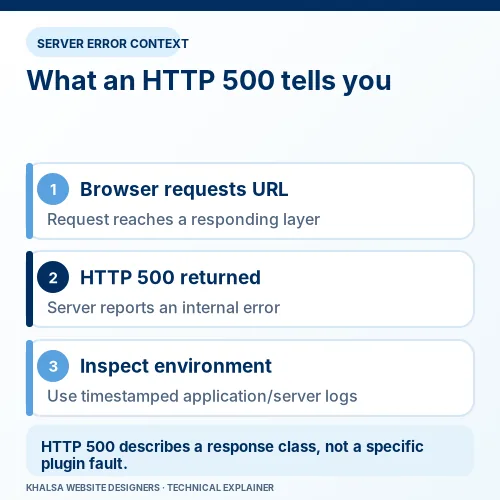
HTTP 500 means a server encountered an unexpected condition while handling a request. It describes the response, not the underlying cause. On a WordPress website, the cause could involve PHP, a plugin, custom code, server configuration or resource limits.
The safest useful sequence is to confirm the failed request, record its time, correlate the response with server or application evidence and test a specific explanation. Resetting configuration files or disabling everything first can create additional failures and destroy a clear timeline.
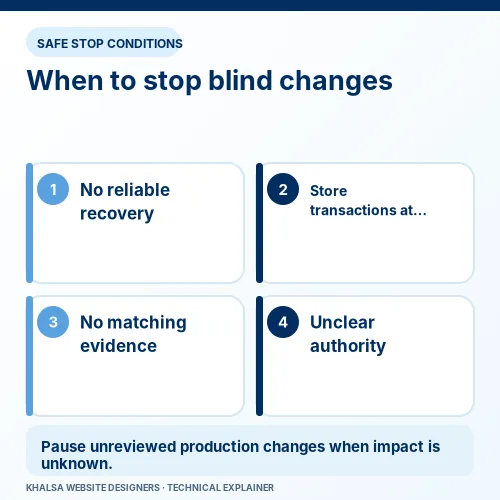
If the website is trading, there is no reliable backup or you do not have authorised server access, collect the symptom and contact the host before editing files.
1. Confirm that the response is actually 500
A browser message can look like a server error without revealing the exact HTTP response. A technically comfortable administrator can inspect the relevant request in the browser's Network panel, reload only the safe page involved and record its status. Otherwise, ask the host to confirm it for the affected URL and time.
Do not repeatedly submit a checkout, booking or destructive administrator action merely to reproduce an error. The operation may partly succeed even when its response fails.
Note whether 500 affects the main document, an API call or an asset. A page can return HTTP 200 while a background request returns 500 and breaks a feature. Conversely, an attractive error page can still correctly return 500 for the main document.
MDN's HTTP 500 reference defines the response as a generic server-side condition. It does not identify WordPress as the cause.
2. Map the affected paths
Check only the relevant safe routes and record the differences.
| Observed pattern | Useful direction for the investigation |
|---|---|
| Every dynamic page fails, but a known static asset works | Investigate application execution and its server dependencies. |
| Only wp-admin fails | Inspect administrator-specific requests, code and resource use. |
| Only one action or API endpoint fails | Follow that route and its matching log entry. |
| Failure appears only under certain load or data conditions | Compare workload, resource limits, timeouts and the exact trigger. |
| The public page works from cache but fresh requests fail | Check the origin independently through an authorised method. |
| Errors began after a configuration change | Compare the changed rule or deployment with the previous known state. |
These are hypotheses to test, not guaranteed diagnoses. A CDN may generate or pass through an error, so establish which layer produced the response.
3. Distinguish 500 from related server responses
| Response | Meaning in the request chain |
|---|---|
| 500 Internal Server Error | A server encountered an unexpected condition and could not complete the request. |
| 502 Bad Gateway | A gateway or proxy received an invalid response from an upstream server. |
| 503 Service Unavailable | The responding service is not ready to handle the request, for example during maintenance or overload. |
| 504 Gateway Timeout | A gateway or proxy did not receive an upstream response within the required time. |
The distinction helps direct evidence collection. The 502 reference, 503 reference and 504 reference explain those semantics. A code alone does not justify a particular configuration change.
A DNS lookup failure happens before an ordinary HTTP exchange with the intended website. Changing DNS records is not a general remedy for a server that is already returning 500, although routing to the wrong server can be part of a wider incident.
4. Capture a timeline and preserve the current state
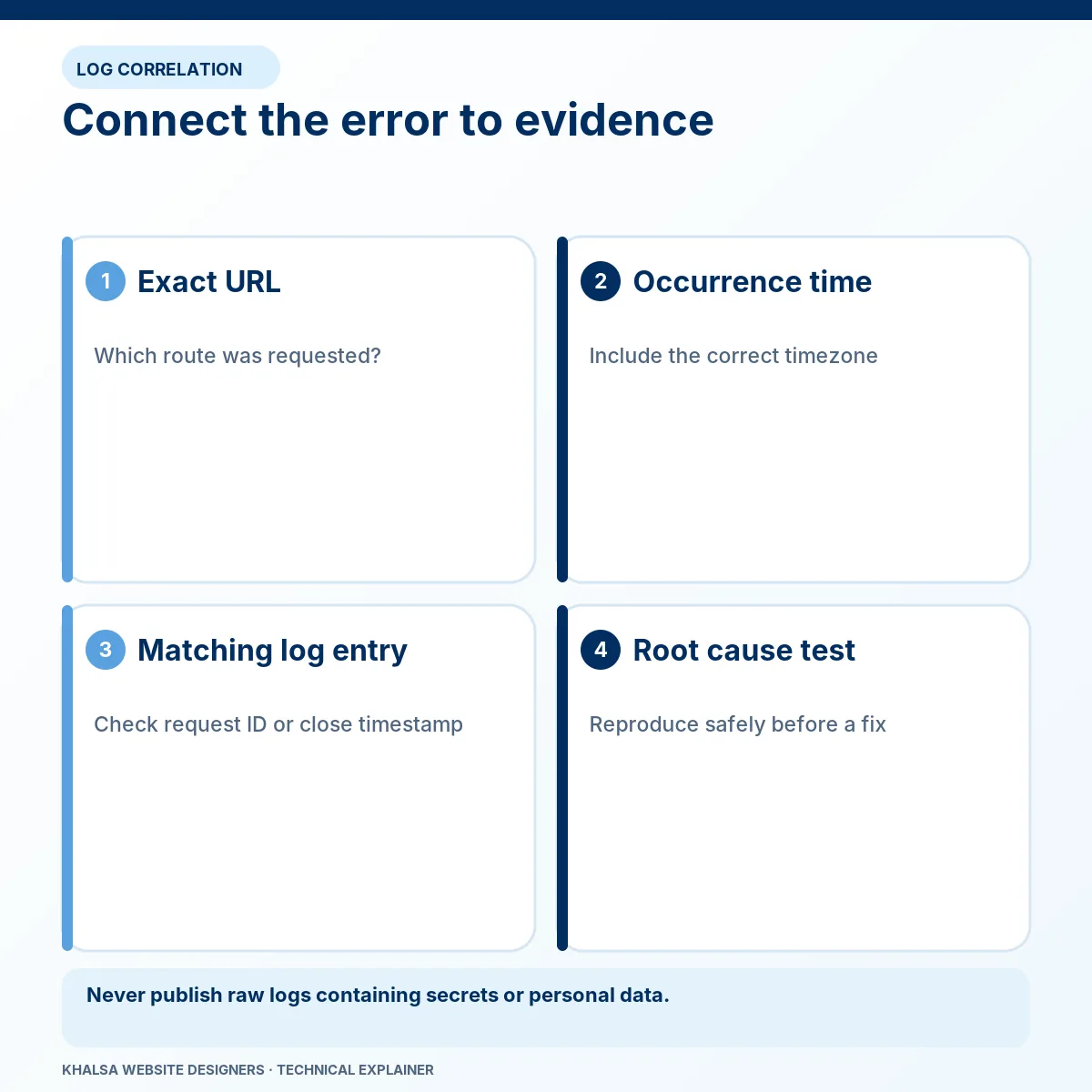
Record the last known successful request, first failure, recent WordPress or plugin updates, PHP changes, deployments and hosting events. Include a time zone so the provider can match its log timestamps.
Preserve relevant files, database state and logs before a rollback. A backup must be suitable for the site and current business activity. A store may have new orders since the last snapshot, even if visitors now see an error.
Do not treat yesterday's error log as proof of today's fault. Pair one safe failing request with the corresponding evidence. If logs have been rotated or are unavailable, record that limitation instead of inventing a cause.
5. Let the matching evidence choose the repair
A PHP fatal or unhandled exception
Inspect the message and call sequence. A plugin or theme filename may show where execution stopped, while the initiating cause lies in another component or input. Compare the relevant versions and dependencies.
If the error followed an update, the critical-error-after-update guide explains the compatibility and rollback decisions. A blanket reinstall of WordPress will not necessarily alter the faulty custom code.
Memory or other resource exhaustion
Confirm which limit was reached and what the request was doing. Increasing a limit can be appropriate when legitimate work needs a supported allocation. It can also postpone a loop, excessive query or unbounded process that still needs correction.
The host may control limits that WordPress settings cannot override. Record the provider's actual restriction rather than repeatedly raising a constant that has no effect.
Server configuration, rewrite or permissions errors
Identify the actual server stack and the rule that changed. Apache's .htaccess handling is different from Nginx configuration and from managed hosting controls. Copying a generic file into an unknown environment can remove required security or routing rules.
Permissions should be appropriate to the host's ownership model. Broadly making files writable is not a responsible repair for an unexplained access failure. Ask the provider to confirm the expected configuration.
Proxy, application worker or external dependency problems
A failed service, exhausted worker pool or slow upstream dependency can produce different responses depending on the stack. Review the proxy and origin evidence together. Restarting a service may restore availability temporarily without explaining the workload or failure that caused the incident.
6. Keep debugging private and temporary
WordPress's debugging handbook describes diagnostic controls and recommends staging or an appropriate backup before changes. For a nontechnical owner, a host-provided log excerpt is usually a better starting point than live configuration editing.
An authorised developer may enable restricted logging in a suitable environment. Public error display can reveal paths and implementation details. A log also needs access protection, limited contents and retention; disabling screen output alone does not provide those controls.
Reproduce the specific failure in staging where practical, with live integrations isolated. Test one change against the hypothesis. Record the result and reverse an ineffective change before trying another explanation, unless a deliberate combined change is necessary and documented.
7. Verify the failing request and its business effect
Confirm that the original route now returns the intended response under the same conditions. Check relevant connected actions and fresh logs. A homepage response does not establish that login, a form endpoint or an order-processing action works.
If an action partly completed during the failure, reconcile its records before repeating it. That matters for payments, bookings, emails and imports. A repair that stops the 500 response can still leave duplicate or incomplete work requiring review.
Record what changed, what was tested, the current operating state and any temporary workaround. An intermittent fault needs an agreed observation period and escalation trigger, not an indefinite claim of stability from one successful request.
Stop and escalate under these conditions
| Condition | Appropriate next step |
|---|---|
| No usable backup or unclear production environment | Preserve the current state with the authorised host before making changes. |
| Live payments or bookings may have partly completed | Reconcile the records before repeating requests. |
| No relevant logs or server access | Ask the provider for the failing request's application and server evidence. |
| Suspected unauthorised changes or harmful behaviour | Use a separate security incident assessment and preserve evidence. |
| Repeated service failure or unexplained resource exhaustion | Involve the server administrator and investigate the workload. |
Website down recovery is the service route for a broader availability problem. If the evidence confirms an application-level fault, WordPress error fixing addresses the code and compatibility investigation.
Questions about WordPress HTTP 500
Should I reset permalinks or replace .htaccess first?
Only if evidence points to the relevant routing configuration and the method fits the server. A fatal error during a specific action needs a different investigation. Preserve the original rules and rollback before changing them.
Does 500 mean the site is hacked?
No. It does not establish compromise. Investigate security indicators separately instead of treating a generic server response as proof.
Why does only wp-admin return 500?
Administrator screens can load code or perform operations that public pages do not. Identify the exact request and matching log rather than assuming the entire site shares one failure.
What should I send the host or developer?
Send the affected URL, failed action, status, time with time zone, recent changes and backup availability. Redact secrets and customer information. Contact KWD with the 500-error evidence if you need the next step scoped.
For a remote HTTP 500 investigation, start through the WhatsApp icon with the affected URL, the time and time zone of the failure and the visible response code. Ask your host to retain the corresponding logs; do not paste secrets or sensitive log entries into chat. Email is available through the Contact page.


