
Contact Form 7 Says Sent, but No Email Arrives: What to Check
Contact Form 7 can report a successful submission without the message reaching your inbox. In a normal mail-enabled configuration, success indicates that its sending process completed without a reported failure; it does not confirm recipient delivery. Demo settings or custom behaviour can also deliberately skip email.
The practical way to diagnose this is to trace one controlled submission through form processing, mail creation, sending transport and recipient handling. Installing another mail plugin before identifying the broken stage can leave the original cause unexplained.
Start with one recognisable test
Use a harmless test message with a unique label, such as “Form delivery check A”, and record the time with time zone. Submit through the same public page visitors use. Use an agreed test sender and recipient, not a real customer's personal message.
Record the response text and the form you tested. A website may embed several forms with similar names, including a footer form, popup or translated copy. An edit to one does not necessarily affect the others.
Preserve existing settings before changing them. If the form is the business's only contact route, provide a working alternative while investigating rather than leaving visitors to submit repeated messages into an uncertain path.
Checkpoint 1: What did Contact Form 7 actually do?
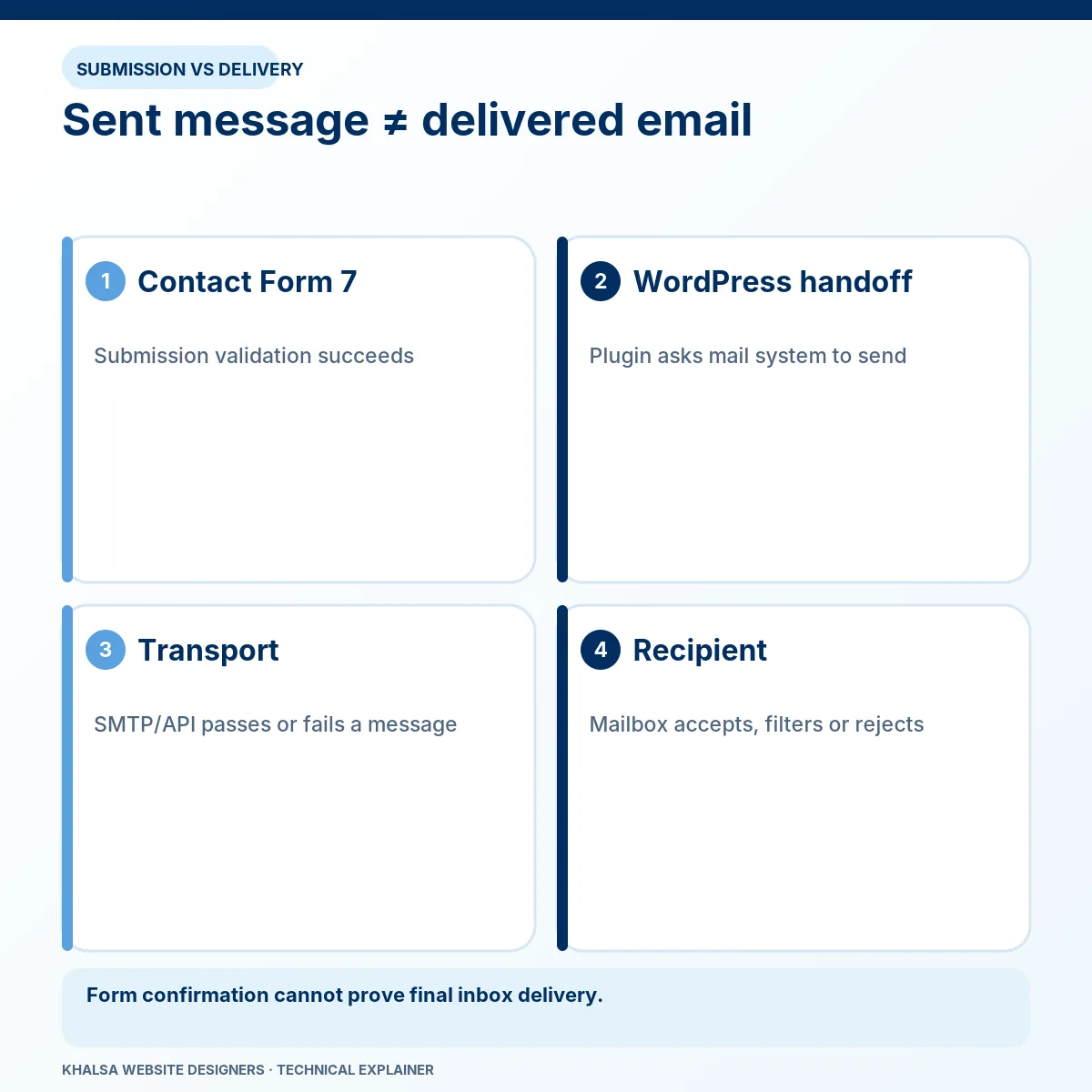
The Contact Form 7 success-message FAQ explains that successful sending-function completion is different from received mail. Do not diagnose from the border colour alone: themes and custom styles can alter presentation.
In the form's Additional Settings, check for intentional mail-skipping behaviour. The official additional-settings reference documents demo_mode and skip_mail. Custom code or integrations may also alter how a submission is handled.
Do not remove those settings blindly. A form may intentionally save a lead to another system without sending mail. First establish the intended workflow, then correct an accidental setting with the owner's approval.
If the actual response is a validation, spam or sending error, record that instead. It is a different branch from a genuine success response. Check anti-spam and server evidence for that submission rather than assuming the recipient lost an email that was never created.
Checkpoint 2: Inspect the Mail settings for this form
Open the affected form in Contact Form 7 and inspect its Mail tab. Confirm the current configuration against the mail setup reference.
| Field | What to check | Common misunderstanding |
|---|---|---|
| To | The intended recipient is correct, valid and still active. | The website administrator's current mailbox is automatically every form's recipient. |
| From | An authorised sender on the site's domain is used consistently with the sending service. | A visitor's Gmail address is a suitable identity for the website to impersonate. |
| Subject and message body | Mail tags correspond to fields that actually exist. | Renaming a field automatically repairs every reference in the mail template. |
| Additional headers | Reply-To and any other headers use valid syntax and appropriate field values. | A working Reply-To authenticates the From domain. |
| Mail (2), if enabled | Its separate recipient and template match its intended purpose. | The owner receiving Mail proves the visitor received Mail (2). |
Mail (2) is triggered only when the primary mail process succeeds. It still needs its own delivery check. Avoid using an autoresponder as the sole proof that the business notification arrived.
Use From and Reply-To for their different jobs
For a fictional website at example.com, an authorised address such as forms@example.com could be the From identity. The visitor's validated email field could be used in Reply-To, provided the referenced mail tag exists and is appropriate for that field.
These are explanatory addresses, not working settings to paste into your website. Use your actual domain and a sender your provider authorises. Contact Form 7's mail best-practice guidance explains this separation.
Do not put an unrelated personal Gmail or Yahoo address into From just because that is the inbox where you want to receive enquiries. The recipient and sender roles are different.
Checkpoint 3: Find the outgoing transport evidence
WordPress may send through the hosting server, an SMTP integration or an email provider API. Identify which route the actual Contact Form 7 message uses. A plugin's test-email tool may use different content or headers from the form.
The wp_mail documentation states that a successful function result does not establish successful receipt. Find the next observable event: a transport error, provider acceptance, queued message, rejection, bounce or suppression.
| Observation | Next useful question |
|---|---|
| No corresponding mail event exists | Was sending skipped, did a hook interrupt it, or are you inspecting the wrong transport? |
| SMTP authentication or API authorisation fails | Are the configured account, permission and provider settings correct? |
| Provider accepts the message | What does its subsequent delivery or bounce history show? |
| A queue retains the message | Is processing working, and has the provider imposed a restriction? |
| Delivery is suppressed | What provider event or policy created the suppression, and what authorised action is appropriate? |
Logs can expose recipients, message content or secrets. Use restricted access and temporary diagnostics, collect only what is necessary and agree retention. Do not paste complete logs into a public support forum.
Check sender authentication without breaking other mail
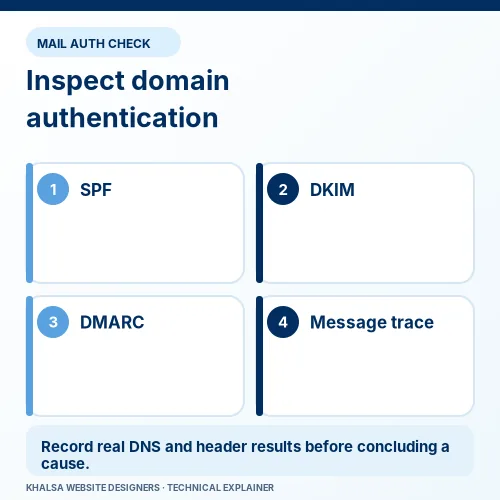
SPF authorises sending infrastructure for the domain being checked; DKIM provides a domain-associated signature; DMARC evaluates an aligned authenticated identity against the visible sender domain and its policy. Authentication and inbox placement are separate questions.
Check actual message headers and provider instructions rather than adding random DNS records. A domain can have several legitimate senders, including staff email, website notifications and a CRM. A replacement record that works for the website but omits the other senders can cause a wider failure.
Gmail's sender guidance distinguishes requirements for all senders from those for bulk senders. Do not assume a small contact form needs every newsletter-specific configuration, or that authenticating a domain guarantees every message will avoid spam.
DNS or policy changes need the domain owner's approval and a view of the existing sending services. If the account uses a managed mail provider, involve its administrator where the site developer does not control the relevant settings.
Checkpoint 4: Verify recipient handling
Ask the authorised recipient to search for the test label and inspect spam, quarantine, mailbox rules, aliases and forwarding. For a managed business mailbox, the administrator may have message-trace evidence unavailable in the ordinary inbox.
A sending provider's delivered event may mean the receiving server accepted the message. It does not always identify its final folder, forwarding outcome or whether a person read it. Keep those evidence levels distinct.
Where practical, run controlled tests to two agreed recipient services. If one receives the notification and the other does not, compare the sender and recipient evidence for those exact tests. Do not change the sender, form and destination simultaneously or the comparison becomes ambiguous.
Avoid using a production customer's address for repeated diagnostics. Test messages should have a defined purpose and a known recipient.
What about lost earlier enquiries?
Contact Form 7 does not store submitted messages by default. An existing storage extension, CRM or mail provider may hold records, but this must be checked. Installing storage after the incident cannot recreate messages that were never retained.
If storage is added, choose appropriate access, retention and privacy arrangements. More retained data creates a responsibility to protect it. A general debugging log should not become an accidental permanent archive of visitor messages.
Confirm the fix through the public form
After an authorised correction, submit a new uniquely labelled test through the same live form under the agreed conditions. Confirm its response, mail creation, provider event and actual arrival at the intended mailbox. Check Mail (2) separately if used.
Retest mobile submission, required-field errors and legitimate anti-spam handling. If the form also creates a CRM record, confirm that action without creating duplicates. Remove temporary diagnostic logging and note the setting changed and any remaining delivery limitation.
One successful message is a finite acceptance test. Continued reliability may benefit from an agreed periodic end-to-end check, but no individual test proves permanent inbox placement.
Questions about Contact Form 7 delivery
Will SMTP solve it automatically?
It may provide a suitable transport, but the form can still skip sending, use incorrect headers or reach a recipient filter. Test the actual notification after configuring transport.
Why does the owner's email arrive but the visitor's confirmation does not?
Mail and Mail (2) can have different recipients, headers and filtering outcomes. Trace both messages individually rather than treating one as proof of the other.
Should I turn off all spam protection?
First establish whether the test was classified as spam. Use a controlled isolation method if needed and restore appropriate protection. A successful submission with a missing email is not automatically an anti-spam problem.
When is professional help appropriate?
Get help when transport logs are unavailable, several sending services share the domain, provider policies are unclear or legitimate leads keep failing after controlled tests. Form and email delivery repair is the relevant service.
Send KWD the form URL and test timeline, with private message content, credentials and unrelated mailbox information removed.
If Contact Form 7 reports success but no email arrives, use the WhatsApp icon to share the form URL, receiving email provider and timestamp of a controlled test. Do not forward unredacted customer submissions. You can also describe the issue through the Contact page.


