
WooCommerce Payment Successful but Order Pending: Safe Checks
If the gateway shows a successful payment while WooCommerce still says Pending payment, do not ask the customer to pay again until the records are reconciled. Confirm the exact processor transaction, whether funds were authorised or captured, and which store order it belongs to. Then investigate how the payment notification was handled.
Changing the order to Completed is not a diagnosis. It may trigger emails, stock changes, downloads or fulfilment while leaving the actual integration fault unresolved.
Understand the two separate state systems
The processor records money-related events. WooCommerce records the order's workflow. Their states normally correspond through an integration, but an interruption can leave them temporarily or incorrectly out of step.
| Record or state | What it generally means | Important qualification |
|---|---|---|
| Processor authorisation | Funds may be reserved for later capture. | It is not the same as a completed capture. |
| Processor capture or successful payment event | The provider records the specified financial outcome. | Match its order, amount, currency and environment; check later refunds or reversals. |
| WooCommerce Pending payment | The store has received an order without recorded payment confirmation. | A processing fault can leave this state stale despite a processor event. |
| WooCommerce On hold | Confirmation or another payment step may be outstanding. | Offline, delayed and authorise-only methods can use it legitimately. |
| WooCommerce Processing | The store treats the order as paid and awaiting fulfilment in the normal workflow. | It does not mean physical goods have been shipped. |
| WooCommerce Completed | The order workflow is marked fulfilled. | A manual status change does not by itself prove a capture or shipment occurred. |
The WooCommerce order-status reference describes the standard workflow. Extensions and payment methods can introduce additional states or handling, so read the installed integration's documentation too.
A customer's bank notification or pending statement entry is useful context, but the merchant's processor record is needed to distinguish a reserved amount from the relevant final payment outcome. A thank-you page is not a financial ledger.
1. Prevent a second charge and duplicate fulfilment
Preserve the affected order and the gateway event history. Flag the mismatch for the person controlling fulfilment. Do not delete the order, retry a live payment, issue a refund or change statuses in bulk while the outcome is unknown.
If speaking to the customer, explain that you are checking the payment record before requesting further action. Do not ask them to send card details or an unredacted bank statement through ordinary support channels.
Check whether another order already corresponds to the payment. A repeated checkout can create multiple store records, and one might be paid while another remains pending. Matching only an email address or approximate time can attach the wrong transaction to an order.
2. Build a private reconciliation record
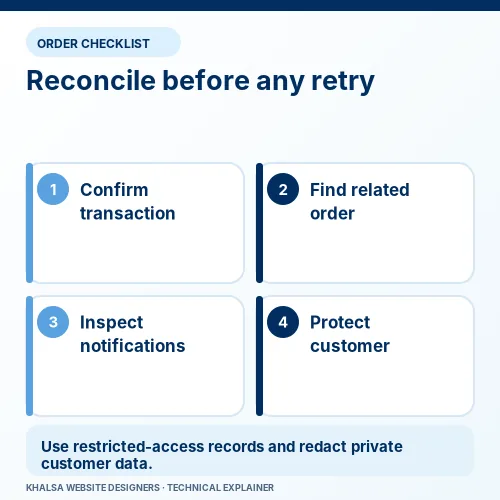
Compare the WooCommerce order with the correct merchant account and environment. Test and live mode can have similar-looking identifiers, but they are separate records.
| Field | Check on both sides |
|---|---|
| Merchant account and environment | Confirm the integration used the expected account and live or test mode. |
| Order reference and processor identifier | Establish the documented relationship, not a guess from proximity. |
| Amount and currency | Check the original amount and any later adjustment. |
| Event time and time zone | Reconstruct sequence without mistaking a time-zone difference for a delay. |
| Financial state | Separate authorisation, capture, refund, failure and delayed confirmation. |
| Store history | Read order notes, payment method, status transitions and relevant extension logs. |
| Fulfilment effects | Check stock, downloads, subscriptions and external actions already triggered. |
Keep full identifiers in a restricted working record when necessary for the actual investigation. Remove them from screenshots or examples intended for publication. The general enquiry form should contain only the symptom and non-sensitive context.
WooCommerce's order troubleshooting guidance recommends checking the gateway's outcome and the order's payment method. If a trustworthy match cannot be established, stop the correction and involve the merchant or gateway support.
3. Trace the payment notification
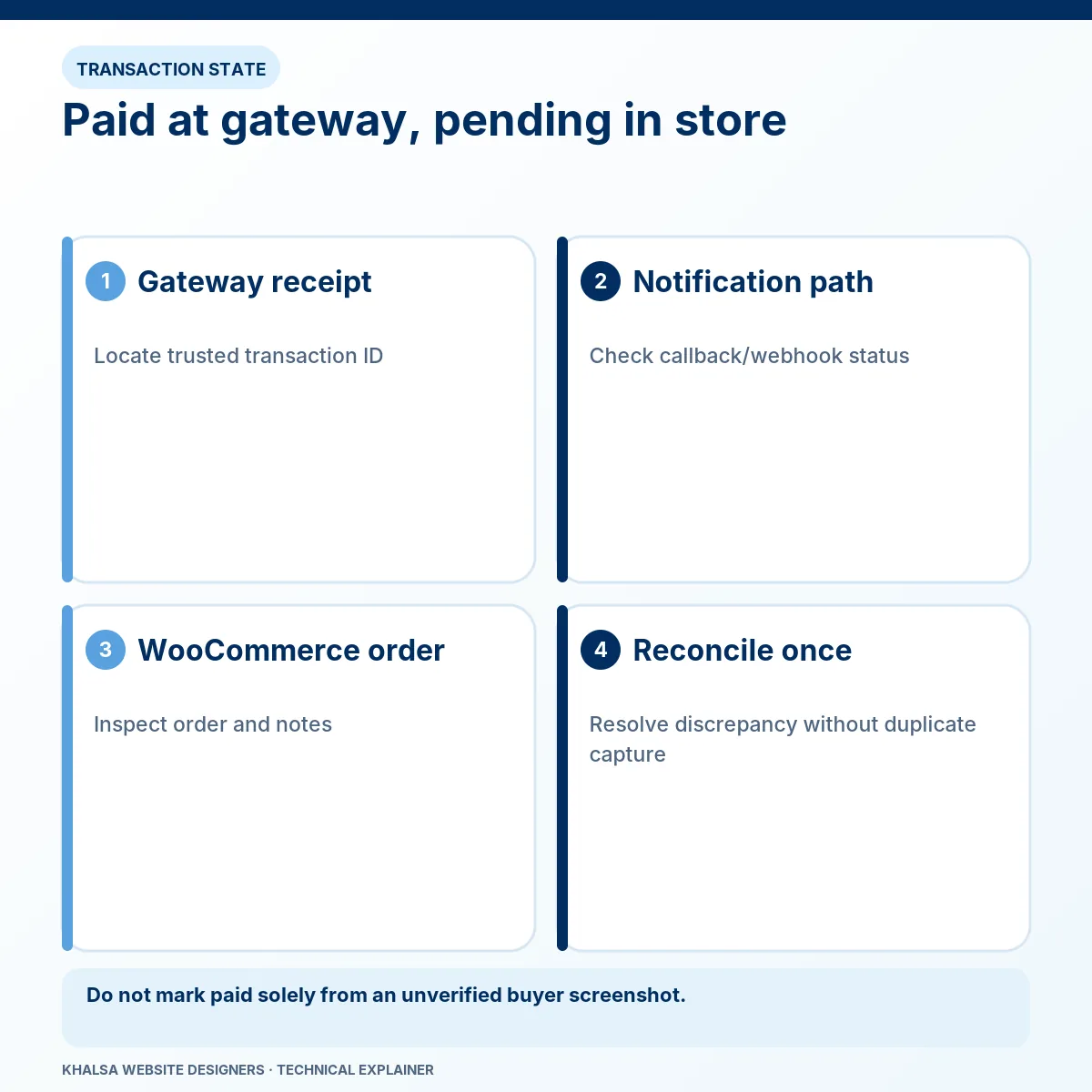
Many gateways send a server-to-server event after payment activity. The integration uses that notification to update the store. It is separate from the customer's browser returning from a payment page.
A fictional sequence illustrates the distinction: the processor captures a sandbox payment, the browser returns successfully, but the notification endpoint rejects the event. The order can remain pending because the store did not complete its payment handling. This is an explanatory scenario, not a report of a KWD client result or an executed test.
Review the provider's event history and matching application evidence:
- Was the relevant event created in the intended account and environment?
- Was it sent to the current correct endpoint?
- Did the endpoint require authentication, redirect, time out or return an error?
- Did signature verification and event parsing succeed?
- Did the integration find the intended order and complete its supported update?
- Did a later event, scheduled action or custom rule change that state again?
An HTTP success response proves only that a response was returned. The endpoint may have acknowledged a message before later processing failed. Check the relevant order and application outcome as well.
4. Check integration-specific causes
Wrong endpoint after a move
A domain or host change can leave a payment provider sending events to the old site. Verify the documented integration configuration and the actual destination. Do not improvise a new callback URL from another plugin's instructions.
Live and test settings disagree
The endpoint secret, account, event selection and mode need to belong together. A sandbox event cannot prove a production event was accepted. Reconnecting a gateway may configure future delivery while leaving earlier orders unreconciled.
Security rules block legitimate notifications
A firewall, maintenance restriction or login challenge can block the provider. Investigate the exact request and use a narrowly appropriate correction. Disabling the site's security globally is not a reasonable default.
Store code fails during handling
An exception in a custom hook or extension can interrupt the update or its side effects. Check the corresponding log and reproduce the condition in an isolated environment. The endpoint and the order-storage method need to match the installed integration.
For WooCommerce's Stripe extension, use its current webhook setup guidance. Other Stripe plugins and other gateways can use different settings. Incoming gateway events should not be confused with WooCommerce's general outgoing webhooks.
5. Resend or correct only through a controlled method
Follow the provider and extension instructions for reviewing or resending an event. Determine what the original event already did, whether another notification may arrive and whether processing is safe to repeat.
Stripe's webhook documentation describes duplicate events, delivery retries and event-order considerations. These are reasons to use supported, repeat-safe handling. A custom manual replay should not produce another charge, stock reduction or fulfilment instruction.
If a manual order correction is appropriate, the authorised operator must first confirm the financial outcome and the exact order. Select the state required by the actual workflow and record why it was changed. Check subscriptions, invoices, customer messages and external fulfilment separately; a status dropdown is not a comprehensive reconciliation tool.
Do not manually capture or refund funds merely to make two labels look alike. Those are financial actions requiring their own verified reason and authority.
6. Verify future purchases and review affected history separately
Use a properly isolated testing environment and the gateway's test mode. Test the relevant success, decline, delayed-event and repeated-event conditions where supported. Confirm that order notes and financial test records agree without triggering real customer actions.
An isolated clone must not receive live production events or run live subscriptions and fulfilment tasks. Protect the distinction between a diagnostic test and the trading store.
After a correction, a successful new order proves that scenario worked. It does not prove every pending historical order is unpaid or reconciled. Review the relevant date range using the matching method, and assign unresolved orders to an authorised person.
When to escalate
Get specialist help when the processor outcome is unclear, several orders are affected, callbacks repeatedly fail, custom payment code is involved or stock and fulfilment may already be inconsistent. Account restrictions or disputed transactions need the gateway's support as well.
WooCommerce checkout and payment repair is the commercial route for this investigation. If the confirmed order is correct and only its email is missing, use transactional email diagnosis for that separate problem.
Questions store owners often ask
Should the buyer try again if the checkout screen showed an error?
Not until the first attempt's processor record has been checked. A website error can occur after a payment event. A second attempt can create a second charge.
Could caching be responsible?
It can interfere with checkout state or requests, but a pending order alone does not prove a cache fault. Trace the specific request and notification path before changing rules.
Will fixing the webhook automatically repair all old orders?
Not necessarily. Future notifications and historic reconciliation are separate tasks. Provider retry behaviour, event retention and the integration's handling determine what can be recovered automatically.
What should I send for an initial assessment?
Send the store URL, gateway name, visible symptom, approximate time with time zone and whether the merchant dashboard shows a matching outcome. Keep transaction identifiers and personal records for an agreed secure investigation channel. Ask KWD to assess the payment mismatch.
For help reconciling a paid-but-pending order, contact KWD through the existing WhatsApp icon. Describe the gateway, order state and approximate event time without sending payment tokens, card data or customers' personal information. The Contact page remains an email alternative.


